Feedback
Setup Plugin in Salesforce via External Client App
Step 1: Open External Client App Manager.
Log in to your Salesforce org and navigate to Setup. In the Quick Find search box, type External Client App Manager and select it from the results.
Click the New External Client App button on the top right.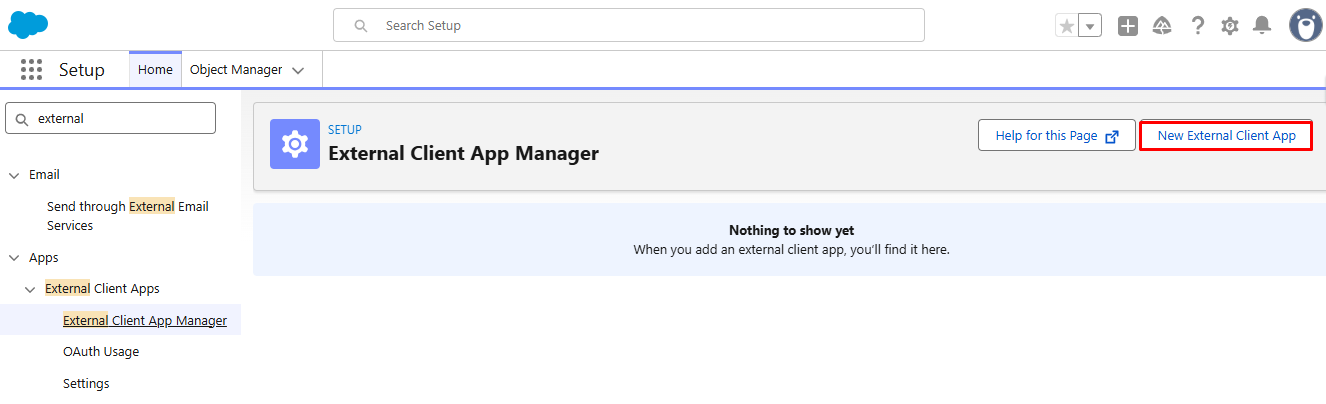
Step 2: Fill in Basic Information
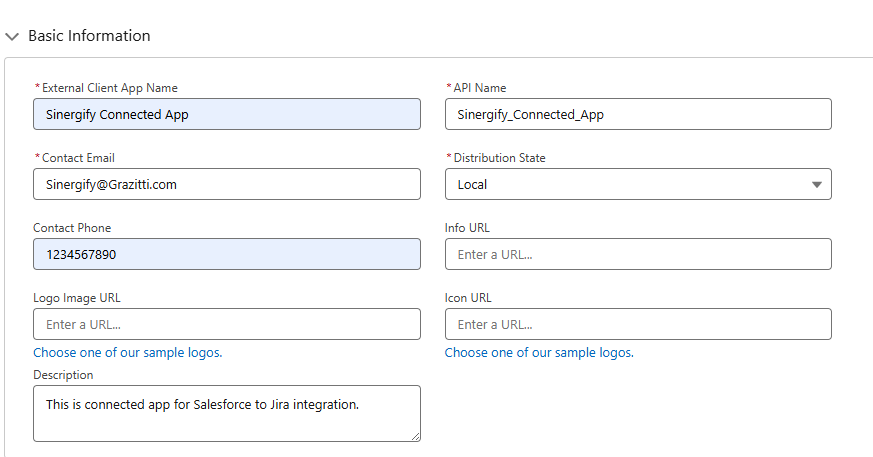
Enter the following details under the Basic Information section:
-
External Client App Name: Enter a name for reference and easier identification.
E.g., Sinergify Connected App Or Sinergify - Jira Prod.
-
Contact Email: Enter the administrator's email address.
This helps in identity verification when Viewing the Client Key and Secret or Modifying the application
-
Distribution State: Select Local.
This indicates the app is used within your org only.
-
Contact Phone (Optional): Enter a contact number.
This helps in identity verification when Viewing the Client Key and Secret or Modifying the application
-
Description (Optional): Briefly describe the app's purpose.
This helps to easily identify the application’s purpose across other applications.
Step 3: Enable OAuth Settings
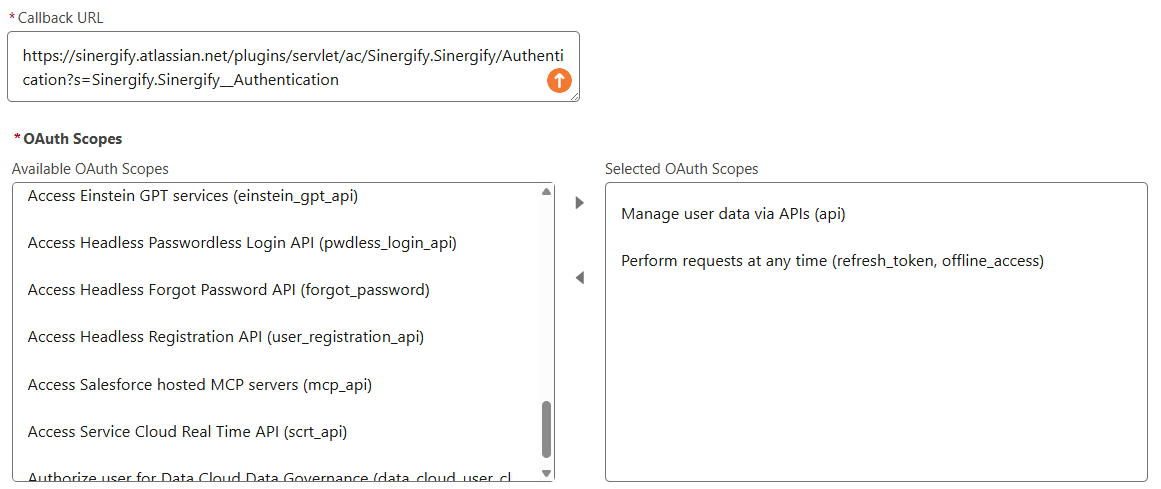
Expand the API (Enable OAuth Settings) section and check the Enable OAuth checkbox.
Under App Settings, configure the following:
-
Callback URL – Enter your Jira Sinergify callback URL in the format: JiraInstanceURL/plugins/servlet/ac/Sinergify.Sinergify/Authentication?s=Sinergify.Sinergify__Authentication
Example: https://sinergify.atlassian.net/plugins/servlet/ac/Sinergify.Sinergify/Authentication?s=Sinergify.Sinergify__Authentication -
OAuth Scopes – Add the below scopes in your Connected app/External client app
-
Manage User Data via APIs (api): Helps in Read/Write access for Salesforce records through APIs
-
Scope: Perform Requests at Any Time (refresh_token, offline_access): Keeps the connection alive for months or years without requiring re-authorization
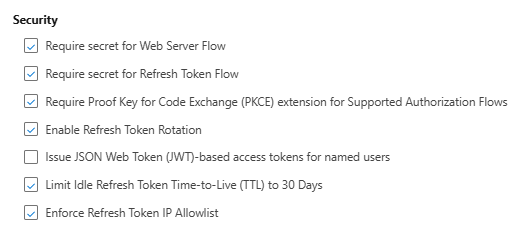
Step 4: Configure Security SettingsScroll to the Security section and enable the following checkboxes. Salesforce recommends the below options for improved security. Reference Salesforce Article
-
-
Require Secret for Refresh Token Flow: Enable to secure token exchanges.
Sinergify supports this setting. Enable it to secure token exchanges.
-
Require Proof Key for Code Exchange (PKCE) extension: Enable to prevent authorization code interception.
-
Enable Refresh Token Rotation: Enable to invalidate old tokens upon issuance of new ones.
-
Limit Idle Refresh Token TTL to 30 Days: Enable to cap idle token lifespan.
-
Enforce Refresh Token IP Allowlist: Enable to restrict requests to trusted IP ranges.
|
When you enable Enforce Refresh Token IP Allowlist, Salesforce will only permit token redemptions from IP addresses you register. You must add Sinergify's server IP to this list for the integration to authenticate successfully. Contact [email protected] to request the IP range. Important: Enabling it without the correct IP will cause all authentication attempts from Sinergify to fail. |
|---|
Reference Security Toggles for CAs and ECAs
Step 5: Save the External Client App
Click Save to create the External Client App.
Step 6: Retrieve Consumer Key and Consumer Secret
After saving, open the newly created External Client App and navigate to the Settings tab.
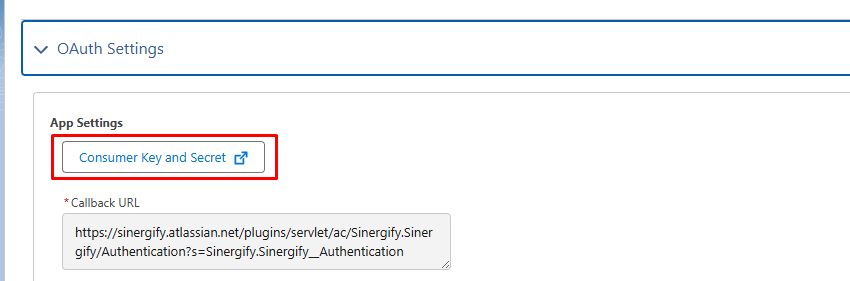
Under the OAuth Settings section, click Consumer Key and Secret. You may be prompted to verify your identity. Copy the Consumer Key and Consumer Secret values — these will be required when authenticating the Sinergify plugin in Jira (refer to the Authentication section under Install and Setup Plugin in Jira).
Step 7: Lock Security Controls
After enabling and verifying all security settings, lock them to prevent unauthorized changes to your integration configuration.
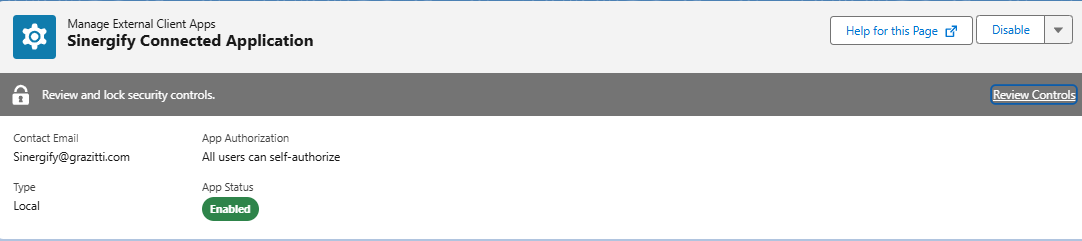
In the External Client App Manager, locate your app. A banner will appear at the top of the page with the message "Review and lock security controls." Click Review Controls.
The Confirm and Lock Security Controls dialog will appear, showing the current state of each security toggle.
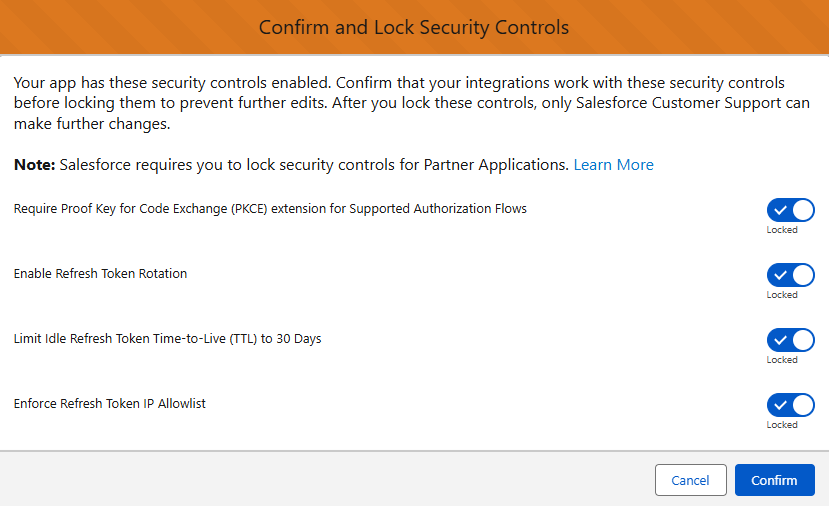
Before clicking Confirm, verify the following:
-
Require PKCE Extension is enabled
-
Enable Refresh Token Rotation is enabled
-
Limit Idle TTL to 30 Days is enabled
-
Enforce Refresh Token IP Allowlist is enabled — only proceed if you have already contacted Sinergify support and confirmed the server IP has been registered against your app.
Once all settings are verified, click Confirm to lock the controls.
|
Important: Salesforce recommends locking these controls as a security best practice to prevent accidental changes that could disrupt the integration. Once locked, these security controls cannot be modified by your org administrators. Only Salesforce Customer Support can make further changes. Ensure the integration is fully tested and working correctly in your environment before locking. |
|---|